Deploy to Your Own AWS or GCP
Run your app's UI in your own AWS or GCP account, on your own cloud bill, while your data and business logic stay on Supero's backend. The Connect and Deploy flow for both clouds, exactly what each grant allows, how to verify a deploy, and how to tear it down.
What This Does
Your users' browser --HTTPS--> UI container (your AWS or GCP account) --/api, /ai--> api.supero.dev
                                     |  serves the app UI                    (auth, data, services, AI)
+- built by CodeBuild / Cloud Build, entirely in your own account- •No admin credential ships in the container. The deployed bundle carries only non-secret identifiers (which Supero project and tenant it points at) plus a scoped read key for the API proxy, minted fresh on every deploy.
- •End users authenticate as themselves. The container forwards each visitor's own JWT to Supero; there is no shared service credential standing in for your users.
- •One bundle, three clouds. The same app bundle is what your CodeBuild or Cloud Build job builds — there is no separate per-cloud source tree to maintain. The image itself is not identical to the one Supero Cloud runs: Supero Cloud builds from a platform-managed container template, while your cloud builds the Dockerfile that ships inside the bundle.
- •Your cloud credentials are never handled by the app-generation service. They are stored encrypted against the project and read only inside the integration handler that talks to your cloud.
How Supero Reaches Your Cloud
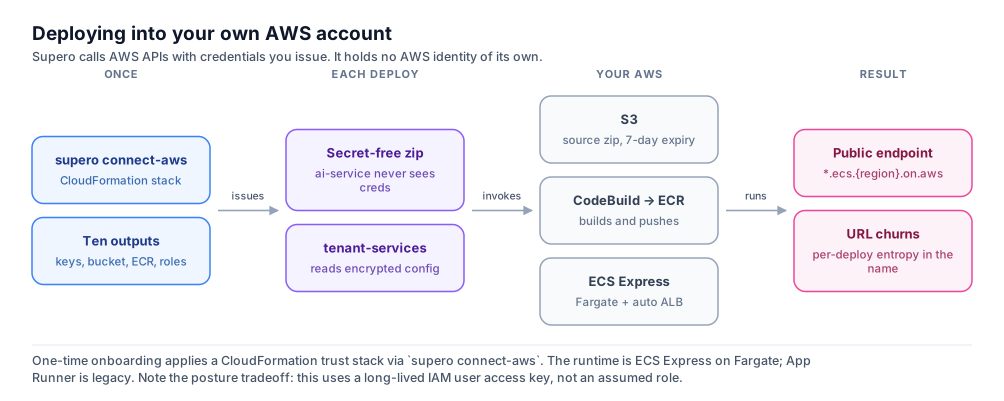
AWS — a long-lived access key you issue
⚠️ This is a weaker posture than short-lived credentials, and Supero says so
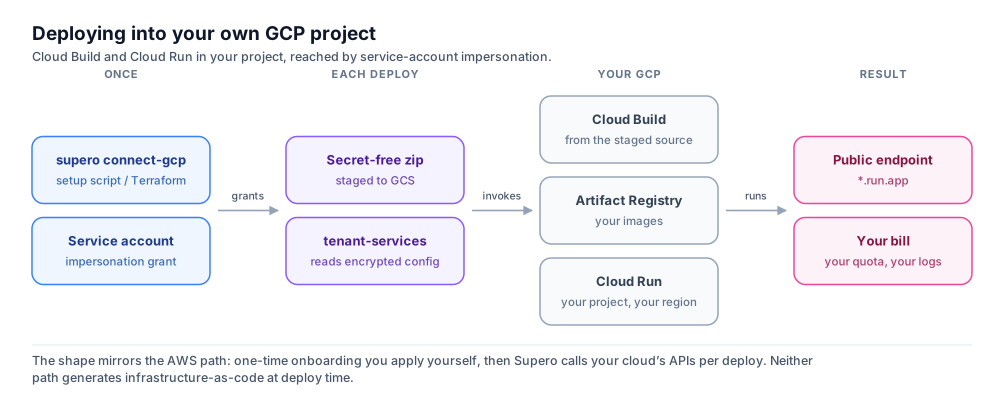
GCP — short-lived impersonation, no key
ℹ️ Neither path generates infrastructure-as-code at deploy time
The URL You Get
| Cloud | URL shape | Stable across redeploys? |
|---|---|---|
| AWS (ECS Express) | An AWS-generated host under *.ecs.{region}.on.aws | No — it changes on every deploy |
| GCP (Cloud Run) | A Google-generated host under *.run.app | Yes, as long as the service is not deleted |
⚠️ On AWS, your app's URL changes every time you deploy
🚨 Custom domains are not implemented
Prerequisites
- •A plan with a live-deployment allowance. Live deployments start at Starter — see Plans & Billing. A deploy with no allowance left returns a 402 upgrade prompt. If the entitlement check cannot be completed, the deploy returns 503 and is safe to retry — this path deliberately fails closed, because a deploy spends money in your account.
- •A Supero login with permission to update the project (project_admin or domain_admin).
- •An app that has already been generated in the project — at least one completed build. The deploy flow needs a bundle to ship.
- •An AWS or GCP account you administer, with billing enabled — this is the account the UI container runs in and is billed to.
- •The supero CLI for the one-command connect: pip install --upgrade supero. The browser wizard can walk you through the equivalent console steps on AWS without it.
ℹ️ This is separate from self-hosting Supero
How It Works
| Step | What happens |
|---|---|
| 1. Supero prepares the bundle | Your app's identity, namespace, and API configuration are baked into a source archive that is scanned for secrets before it leaves Supero. No credential is included. |
| 2. Your cloud builds it | CodeBuild (AWS) or Cloud Build (GCP) builds the image inside your account and pushes it to your own registry — ECR or Artifact Registry. |
| 3. Your cloud runs it | ECS Express Mode (AWS) or Cloud Run (GCP) serves the UI on a public URL in your account. |
| 4. Data stays in Supero | The running container proxies /api and /ai to Supero with a scoped read key. No customer data lands in your cloud. |
⚠️ There is no server-side deploy record
Deploy to AWS
Connect, in one command
pip install --upgrade supero
supero connect-aws --region us-east-1

# optional:
#   --stack-name supero-connect     name of the CloudFormation stack
# --resource-prefix supero prefix for the resources it createsWhat the stack creates
- •An S3 deploy bucket for source archives, encrypted with AES-256 and set to expire objects after 7 days.
- •An ECR repository for the built images.
- •A CodeBuild project and its service role, with privileged mode enabled so it can build container images.
- •An ECS task execution role and an ECS infrastructure role — the latter is what lets ECS Express provision the load balancer for you.
- •Two App Runner roles, for the legacy runtime. New connections do not use them.
- •A scoped IAM user and one access key for it, with three customer-managed policies attached (three rather than one because an IAM user's inline policy budget is too small to hold them).
Paste seven values back
| Stack output | What it is for |
|---|---|
| AwsAccessKeyId | The scoped deploy identity Supero authenticates as |
| AwsSecretAccessKey | Its secret — stored encrypted |
| DeployBucket | Where the prepared source archive is uploaded |
| EcrRepoUri | The registry CodeBuild pushes the image to |
| CodeBuildProjectName | The build project Supero starts |
| EcsTaskExecutionRoleArn | ECS Express task execution role |
| EcsInfrastructureRoleArn | ECS Express infrastructure role — provisions the load balancer |
| Region (not pasted) | Confirm the wizard's region selector matches this |
Deploy
What the deploy user can do
| Permission group | Scope |
|---|---|
| Identity | Read its own caller identity. Nothing else. |
| Build | Upload source to the named S3 deploy bucket; start and read the named CodeBuild project; read and push to the one named ECR repository. |
| Run (ECS Express) | Create the Express service; update, delete, and describe scoped to services named supero-*; pass role only to the two ECS roles this stack created. |
💡 ECS Express is the runtime for new connections
Deploy to GCP
Connect, in one command
pip install --upgrade supero
supero connect-gcp \
  --project-id <your-gcp-project> \
  --external-id <copied from the wizard> \
--region us-central1# In Cloud Shell, inside YOUR GCP project — values as shown by the wizard
PROJECT_ID=<your-gcp-project> \
SUPERO_DEPLOYER_SA=<value shown in the wizard> \
EXTERNAL_ID=<copied from the wizard> \
REGION=us-central1 \
bash gcp-setup.sh⚠️ The setup script is the only supported path
What the setup creates
- •Six APIs enabled: Cloud Run, Cloud Build, Artifact Registry, IAM, Cloud Storage, and IAM Service Account Credentials.
- •An Artifact Registry repository for the built images.
- •A GCS bucket for staged source, with a 7-day delete lifecycle rule.
- •A Cloud Run runtime service account, deliberately created with no project roles at all — the app only proxies to api.supero.dev over HTTPS, so it needs nothing.
- •A deploy service account, which is the identity Supero impersonates.
Paste six values back
| setup output | Paste into |
|---|---|
| gcp_project_id | Project ID |
| region | Region — required, not optional |
| deploy_sa_email | Deploy service account |
| artifact_registry_repo | Artifact Registry repo |
| cloud_run_service_account | Cloud Run runtime service account |
| source_bucket | Source bucket |
What the setup grants
| Grant | On | What it is for |
|---|---|---|
| artifactregistry.writer | The app's Artifact Registry repo | Push the built image |
| run.admin | The whole project, with no condition | Create, update, and delete the Cloud Run service — see the warning below |
| cloudbuild.builds.editor | The project | Run the build |
| storage.objectAdmin | The source bucket only | Upload prepared source |
| iam.serviceAccountUser | The Cloud Run runtime SA | Attach the runtime SA to the Cloud Run service |
| iam.serviceAccountUser | The deploy SA itself | Let the build run as the deploy SA rather than the project default |
| logging.logWriter | The project | Required because the build writes to Cloud Logging only |
| iam.serviceAccountTokenCreator | The deploy SA, granted to Supero's deployer identity | The trust edge — lets Supero impersonate the deploy SA with one-hour tokens |
🚨 run.admin is granted on the entire project, unconditioned
💡 The build never acts as your compute default service account
- •The External ID from the wizard ties your connect run to this project. Treat the token-creator grant, not the External ID, as the access control: that binding is what governs whether Supero can impersonate the SA at all, and removing it cuts access off immediately.
- •Revoking is one command — see Teardown below. You do not need to delete any infrastructure to stop Supero reaching your project.
Deploy
⚠️ Known issue: a deploy can report success while the URL returns 403
Verify It Actually Works
⚠️ A green status is not the same as a working app
curl -s -o /dev/null -w "GET / -> %{http_code}\n" "https://YOUR-DEPLOY-URL/"- •The page loads. HTTP 200, and the landing page renders your app's real branding — not a generic placeholder.
- •No "couldn't reach the server" banner. If you see one, the container cannot reach Supero's API — redeploy to refresh its runtime credentials, or re-check the Connect step.
- •A data page shows real records. Open a listing or catalog page and confirm it renders actual records, not empty cards — this proves the namespace and seed data are wired correctly, not just that the container is up.
- •Sign-up and login work. Create or sign in as an end user; auth proxies to Supero and should succeed exactly as it would on Supero Cloud.
- •A create persists on reload. Do one write — add to cart, submit a form, create a record — then reload and confirm it is still there. This proves the write path, not just reads.
- •Open the URL in a private window. On GCP this is the check that catches the swallowed public-access failure described above.
💡 If you deploy to more than one cloud
Troubleshooting
| What you see | Why | Fix |
|---|---|---|
| Deploy blocked, 402 upgrade prompt | Your plan has no live-deployment allowance left. | Upgrade — live deployments start at Starter. See Plans & Billing. |
| Deploy blocked, 503 | The entitlement check could not be completed. This path fails closed on purpose, because a deploy spends money in your account. | Retry. If it persists, contact support. |
| The start call returns 504 but a build appears in your account anyway | The start call is bounded to about 85 seconds so it never hangs behind an edge timeout. The work continues in your cloud. | Check CodeBuild or Cloud Build directly, then reopen the panel and redeploy if needed. |
| The panel lost track of a deploy after a tab reload | The deploy handle lives in the browser; nothing durable is recorded on the Supero side for customer-cloud deploys. | Check the build and the ECS or Cloud Run service in your own console. Tear down anything orphaned before redeploying. |
| GCP: running, but the URL 403s for everyone | The public-access grant failed and the failure was swallowed. | Redeploy, or grant roles/run.invoker to allUsers on the Cloud Run service. |
| GCP: a deploy fails partway with a permission error | The project was provisioned by something other than the current setup script, so it is missing one or more grants. | Re-run supero connect-gcp — it is idempotent and re-applies every binding. Do not hand-grant permissions on the default compute service account; it carries Editor, and the setup deliberately avoids it. |
| AWS: the URL changed after a redeploy | Expected. The ECS service name carries per-deploy entropy to avoid the roughly one-hour INACTIVE name lock. | Read the current URL from the panel after every deploy. Do not publish an AWS deploy URL as a stable address. |
| AWS: an ECS service shows INACTIVE right after a teardown | ECS Express holds a torn-down name for roughly an hour. | Redeploy immediately — the new deploy gets a freshly salted name, so it does not collide. |
| AWS: the stack will not create | The stack creates named IAM resources. | Tick "I acknowledge that AWS CloudFormation might create IAM resources with custom names" (CAPABILITY_NAMED_IAM), or use supero connect-aws, which passes it for you. |
| App loads but a data page is empty or generic | The namespace baked into the container does not match the project, or the project was never seeded. | Redeploy to refresh the bundle. If it is still empty, open the app once on a Supero Cloud preview so it seeds, then redeploy your cloud target. |
| Blank shell, or "couldn't reach the server" | The running container's scoped runtime key is stale. | Redeploy — every deploy mints and injects a fresh scoped read key. |
Cost, Logs & Teardown
Cost
Logs
⚠️ The deploy panel does not show build logs for this path
Teardown
- •Remove deployment in the deploy panel deletes only the running service — the ECS Express service or the Cloud Run service. That is what stops the recurring cloud charge. Your data in Supero is untouched.
- •AWS — to fully revoke Supero's access, delete the deploy user's access key, or delete the whole CloudFormation stack (which also removes the shared build infrastructure).
- •GCP — to cut off Supero immediately without touching any infrastructure, remove the token-creator binding from the deploy service account. Optionally remove the rest afterwards: the deploy SA, the runtime SA, the Artifact Registry repo, and the source bucket.
gcloud iam service-accounts remove-iam-policy-binding <deploy_sa_email> \
  --member="serviceAccount:<SUPERO_DEPLOYER_SA>" \
  --role="roles/iam.serviceAccountTokenCreator"
🚨 Teardown does not delete your data
Next Steps
- •Deploy to AWS / GCP — Verification Runbook — the short pre-flight and post-deploy checklist.
- •Choosing a Deployment Option — the decision matrix across Supero Cloud, your own AWS or GCP, and self-hosting the platform.
- •Publish Your App (Go Live / Supero Cloud) — the one-click hosted alternative.
- •On-Premise Deployment — self-hosting the platform. Note that deploy-to-your-own-cloud does not ship on-premise.
- •Plans & Billing — how live deployments count against your plan.
On this page