Build an App over MCP
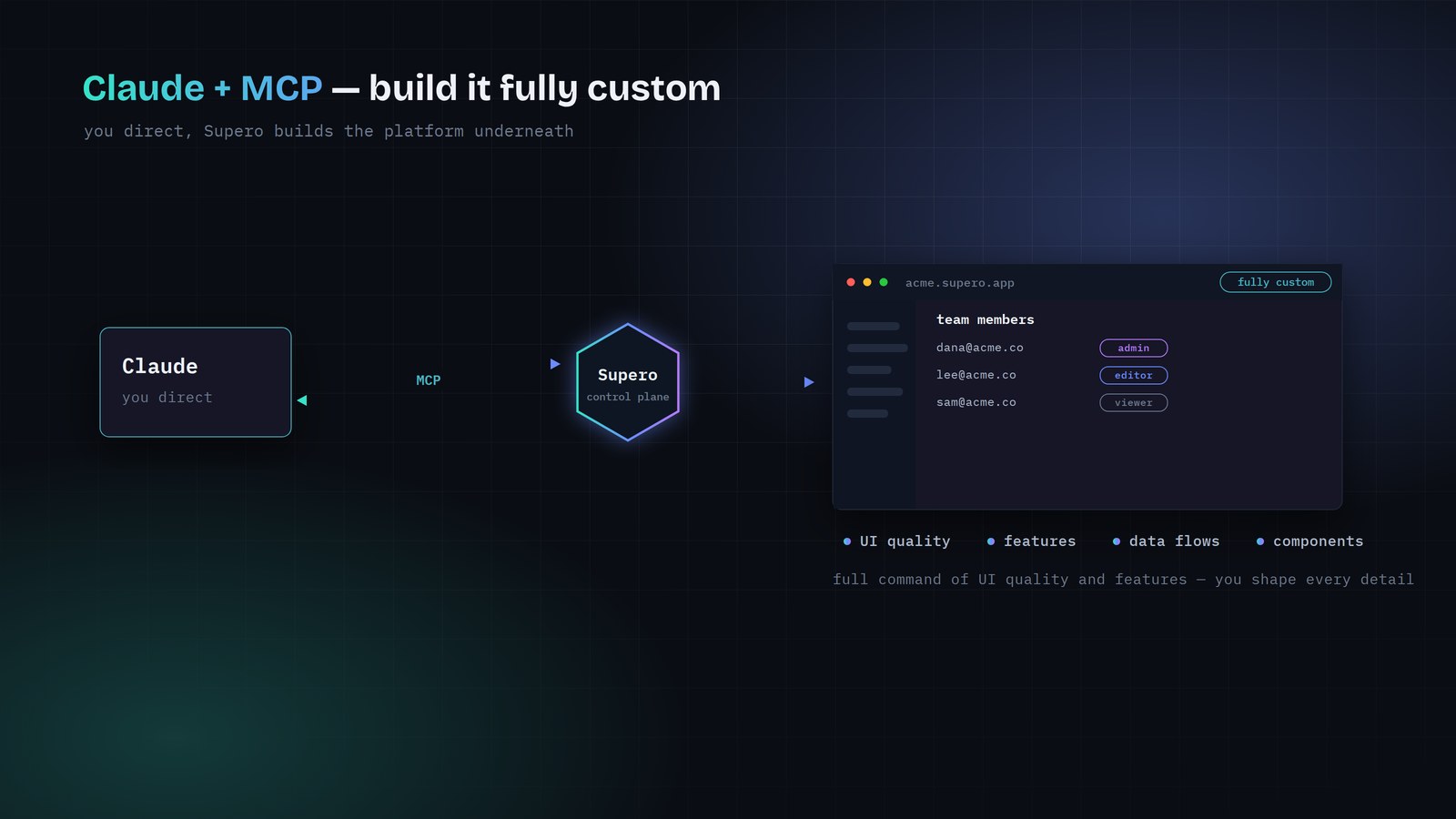
The end-to-end path: mint a correctly scoped API key, connect your editor, drive a build through the build_* tools, and deploy — either a short-lived preview or a permanent one.
Before You Start
🚨 Building requires an API key — a login session will not work
1. Get an API Key, and Scope It Correctly
ℹ️ The scope is the address, not a setting
| Key is created under | Effective role | Can it build? |
|---|---|---|
default-project / default-tenant | domain_admin — the whole domain | Yes, and more besides. Broader than a build needs. |
your project / default-tenant | project_admin — that one project | Yes. This is the one you want for building. |
| your project / a named tenant | tenant_user — one tenant's data | No. Build tools refuse this role. |
default-tenant. That is exactly what the console's Connect via MCP page mints.🚨 A build key is project-wide — never ship it as a runtime credential
curl -X POST https://api.supero.dev/api/v1/domains/acme/api-key \
  -H "Authorization: Bearer $ACCESS_TOKEN" \
  -H "Content-Type: application/json" \
  -d '{
    "project_name": "my-app",
    "tenant_name": "default-tenant",
    "description": "MCP build key",
    "scopes": ["read", "write", "delete"]
  }'
Scopes cap a key — they never widen it
scopes list narrows what a key may do within the role its address already implies. It cannot grant anything the role does not have.| scopes | What the key can do |
|---|---|
["read"] | Read only. |
["read", "write"] | Read and write, but not delete. |
["read", "write", "delete"] | Full record access. Use this for a build key. |
⚠️ A read-only key will start a build and then fail partway
Revoking a key
🚨 Delete a key to revoke it — disabling is not enough
ℹ️ Two fields that are stored but not enforced today
2. Connect Your Editor
X-API-Key header.| Setting | Value |
|---|---|
| Endpoint | https://api.supero.dev/mcp/v1/messages |
| Transport | Streamable HTTP, JSON-RPC 2.0 |
| Auth header | X-API-Key: ak_... |
Claude Code
claude mcp add --transport http supero \
  https://api.supero.dev/mcp/v1/messages \
  --header "X-API-Key: ak_..."
Cursor — ~/.cursor/mcp.json
{
  "mcpServers": {
    "supero": {
      "url": "https://api.supero.dev/mcp/v1/messages",
      "headers": { "X-API-Key": "ak_..." }
    }
  }
}
VS Code — .vscode/mcp.json
{
  "servers": {
    "supero": {
      "type": "http",
      "url": "https://api.supero.dev/mcp/v1/messages",
      "headers": { "X-API-Key": "ak_..." }
    }
  }
}
⚠️ Send exactly one credential header
Verify the connection
build_whoami. It returns the domain, project and role your key resolved to, so you can confirm the scope is what you intended before you build anything.💡 Do not verify by listing tools
3. Build the Application
- 1
build_whoami
Confirm which domain, project and role the key resolved to.
- 2
build_create_project, or list and get an existing one
Establish the project you are building into.
- 3
build_get_skills and build_get_examples
Pull the platform's own build guidance and worked examples into your editor's context. Skipping this is the most common cause of a build that produces plausible but non-working code.
- 4
build_plan
Turn your intent into a concrete plan before any file is written.
- 5
Author the bundle
Your editor writes the files. See the file contract below.
- 6
build_validate
Static checking of the bundle. Your code is analysed, never executed.
- 7
build_doctor
Catches the problems validation cannot see — startup and seeding issues, reserved names, namespace collisions.
- 8
build_publish
Registers the version with the platform.
- 9
Deploy
See the next section.
- 10
build_smoke_test
Confirms the deployed URL actually renders, and that the deploy you are looking at is the one you just published.
The bundle file contract
- •
schemas.py— your object types - •
config.py— project identity and the services you import - •
setup.py— provisioning, seed data and workflow definitions - •
__main__.py - •
requirements.txt - •
run.sh - •
ui/app.js— the application shell resolver
⚠️ Six files must not be in the bundle
Iterating after the first build
build_get_bundle, edit, then run validate, doctor and publish again. Each publish creates a new version rather than overwriting the last.Adding integrations
config.py by their catalog service id. build_list_capabilities shows you what exists; build_recommend_integrations suggests what suits the application you are describing. See External Integrations for what each one needs.⚠️ Configure test credentials only over MCP
4. Deploy
| Tool | What you get | Lifetime |
|---|---|---|
build_deploy | A preview, or a local run. Targets are cloud_ephemeral and local. | The cloud preview expires after 30 minutes. |
build_go_live | A permanent application on its own supero.live subdomain. | Until you take it offline. |
ℹ️ Going live is reachable from MCP
Both cloud paths are asynchronous
build_deploy_status until it resolves. If a deploy is still pending after about five minutes, treat it as failed rather than continuing to wait, and use build_logs to find out why.Limits worth knowing before you hit them
| Limit | Value |
|---|---|
| Preview lifetime | 30 minutes |
| Files per bundle | 300 |
| Size per file | 2 MB |
| Total bundle size | 8 MB |
| Request body | 12 MB |
build_whoami reports whether your plan includes it, so check that before you plan a launch rather than discovering it at the deploy step. Builds and deploys draw on your plan's usage allowance; when an allowance is exhausted the platform says so explicitly, naming which one.🚨 Two failure modes that look like something they are not
Where to Go Next
Ideas for what to build
Project briefs, a step-by-step first build, and community apps with source. supero-mcp on GitHub
Tool reference
Every tool, its parameters, and the protocol details. Open
What you are building on
Domain, project, tenant, and the Builder/Runtime split. Core Concepts
A worked example
A multi-tenant issue tracker built this way, end to end. Case study
Compare the paths
MCP is one of five ways in. Ways to Build
On this page